We add widgets all the time. We can't help it. It's mainly inspired by real life feedback from Quinn's teachers or our QVoicer community. As widgets are created, they are added to the QVoice Library (or the demo account). So you can download them from there if you're interested in trying them out. Here are 3 easy steps to getting widgets:
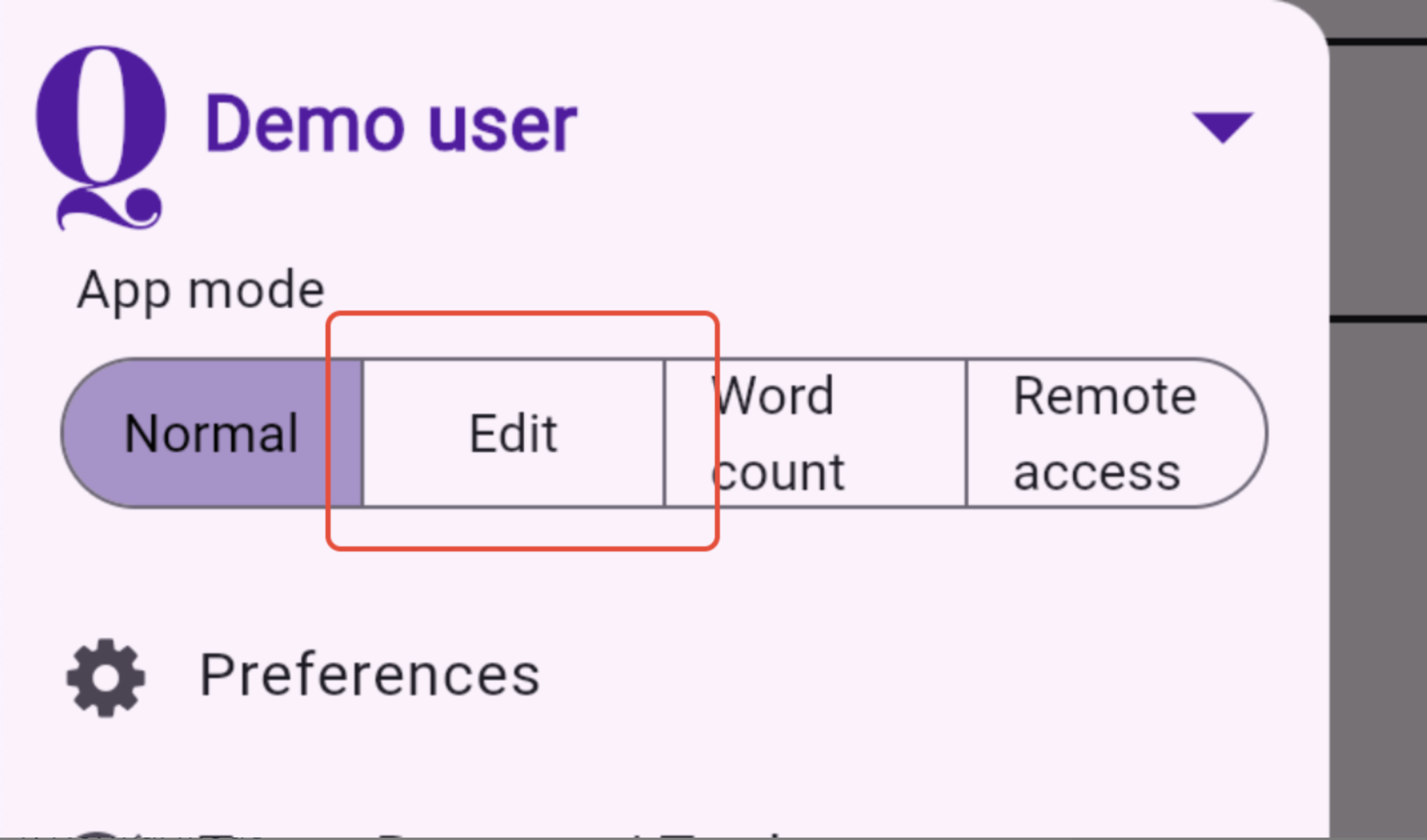
Enter Edit Mode: Long-press the Q Menu and toggle Edit Mode on.
Pick a Spot: Tap any empty (+) tile on your grid and start typing the Widget name. The search dialog automatically searches the QVoice Library. Browse the complete list of widgets here or watch our Widget Video Tour here.
The example below shows you how to download the new Calendar Widget from the QVoice Library. If you already have the widget in your account, it will show under your local search results.
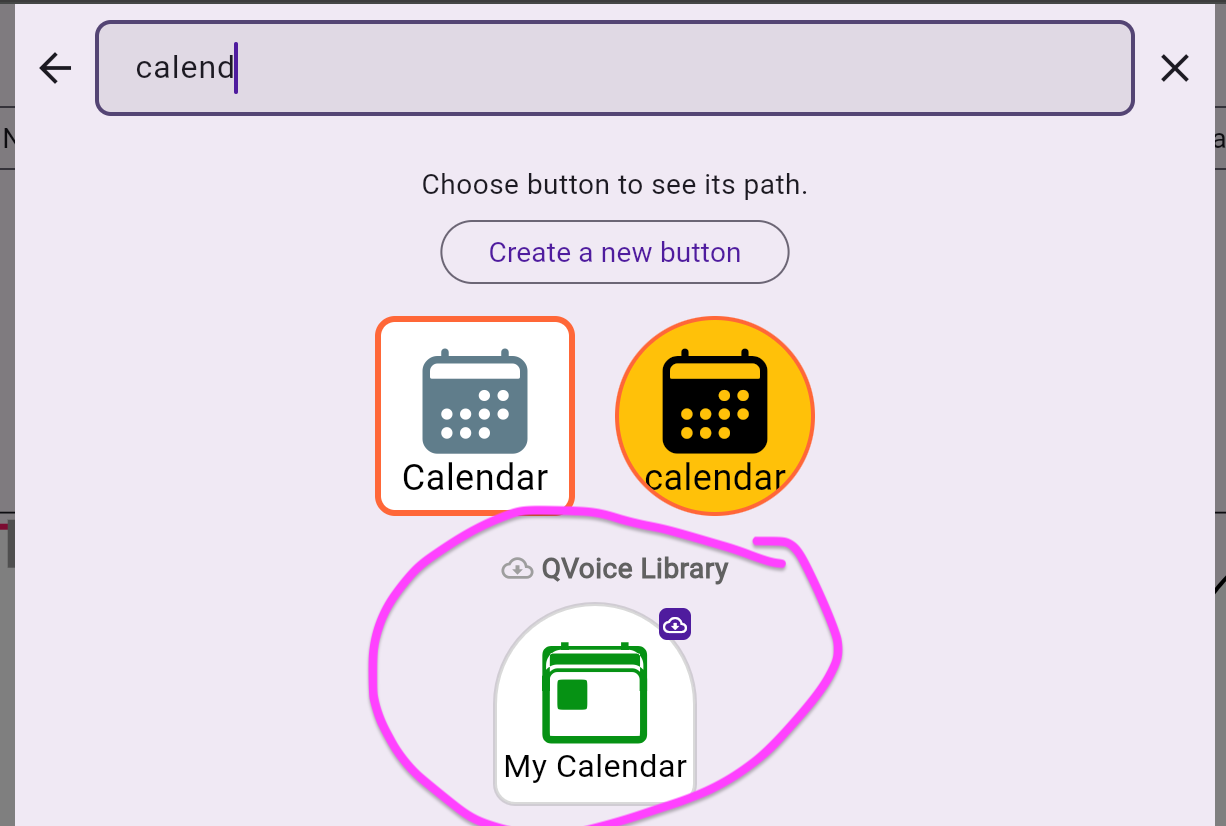
Tap on the Widget and hit Copy to download the widget into your account.
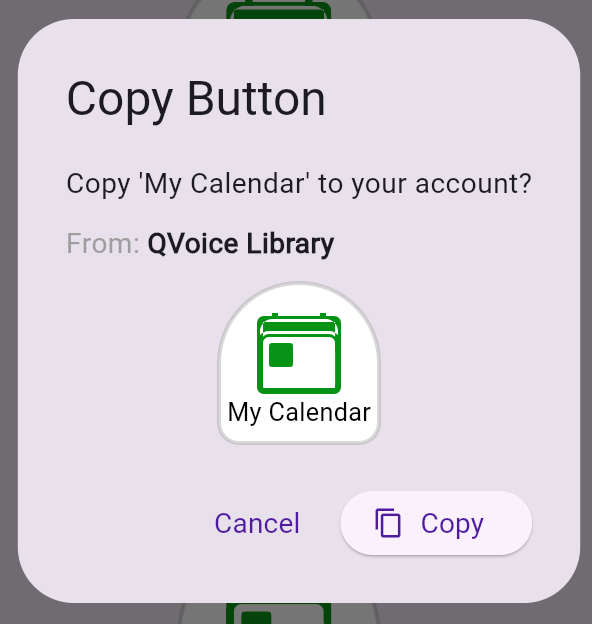
That’s it!
Note:
An internet connection is required to download a new widget.
If you don't see the new options, make sure you've updated your app to the latest version in the App Store.
** Have a widget idea or suggestion? We'd love to hear from you! Please shoot us a message!
Was this article helpful?
That’s Great!
Thank you for your feedback
Sorry! We couldn't be helpful
Thank you for your feedback
Feedback sent
We appreciate your effort and will try to fix the article